How to invite members and set roles in Sklad
Invite people to your account, then choose which storages each one can see. In a storage a member is an Admin, who can change things, or a Viewer, who can look.
Do this
- In the sidebar, open Members and click Add member. Enter their email and click Send invite.
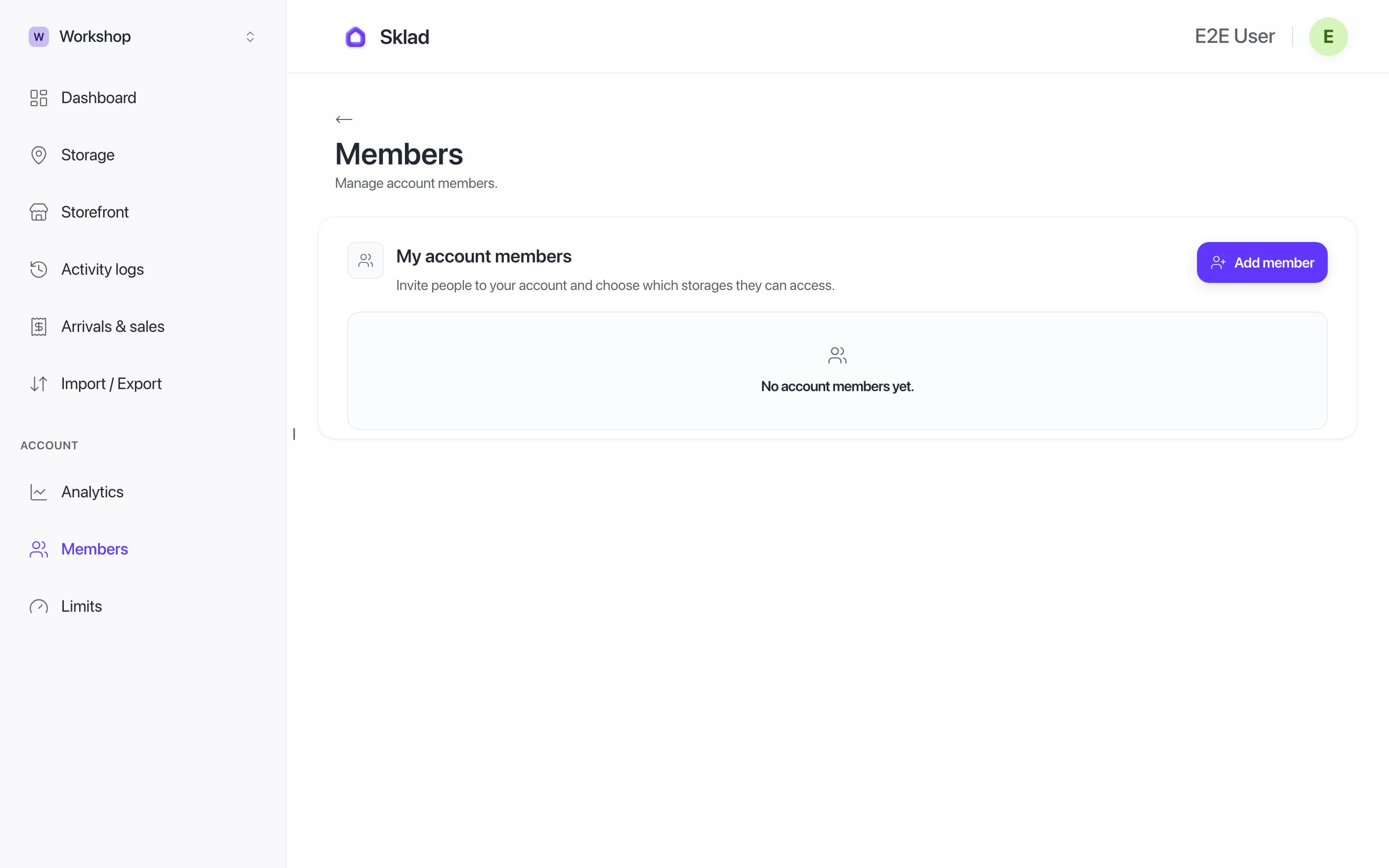
- They see an invitation the next time they sign in, and click Join account.
- In a storage, open More actions → Members, then Add member. Pick the person and a role, and click Save member.
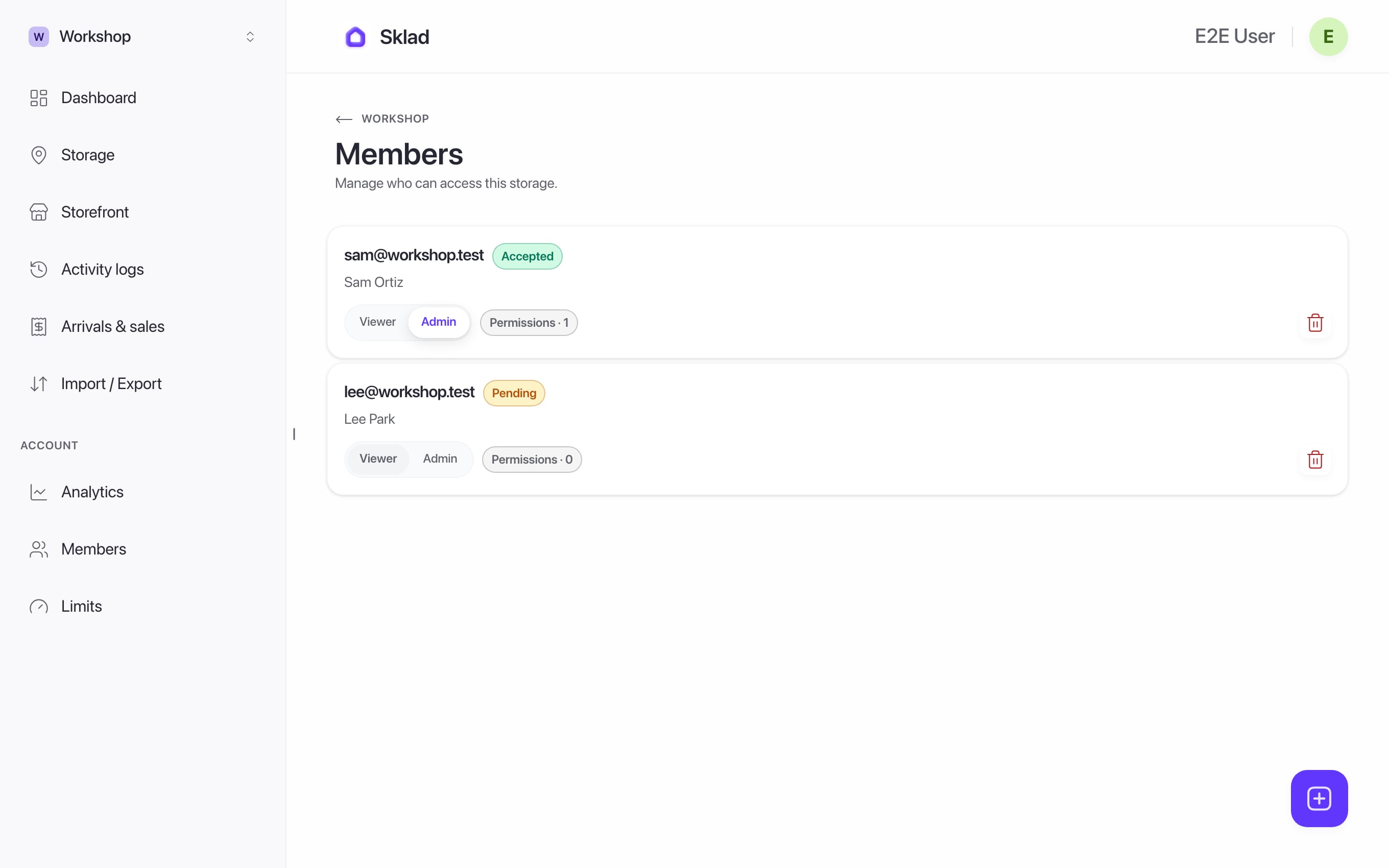
- To let a member see prices, turn on See item prices.
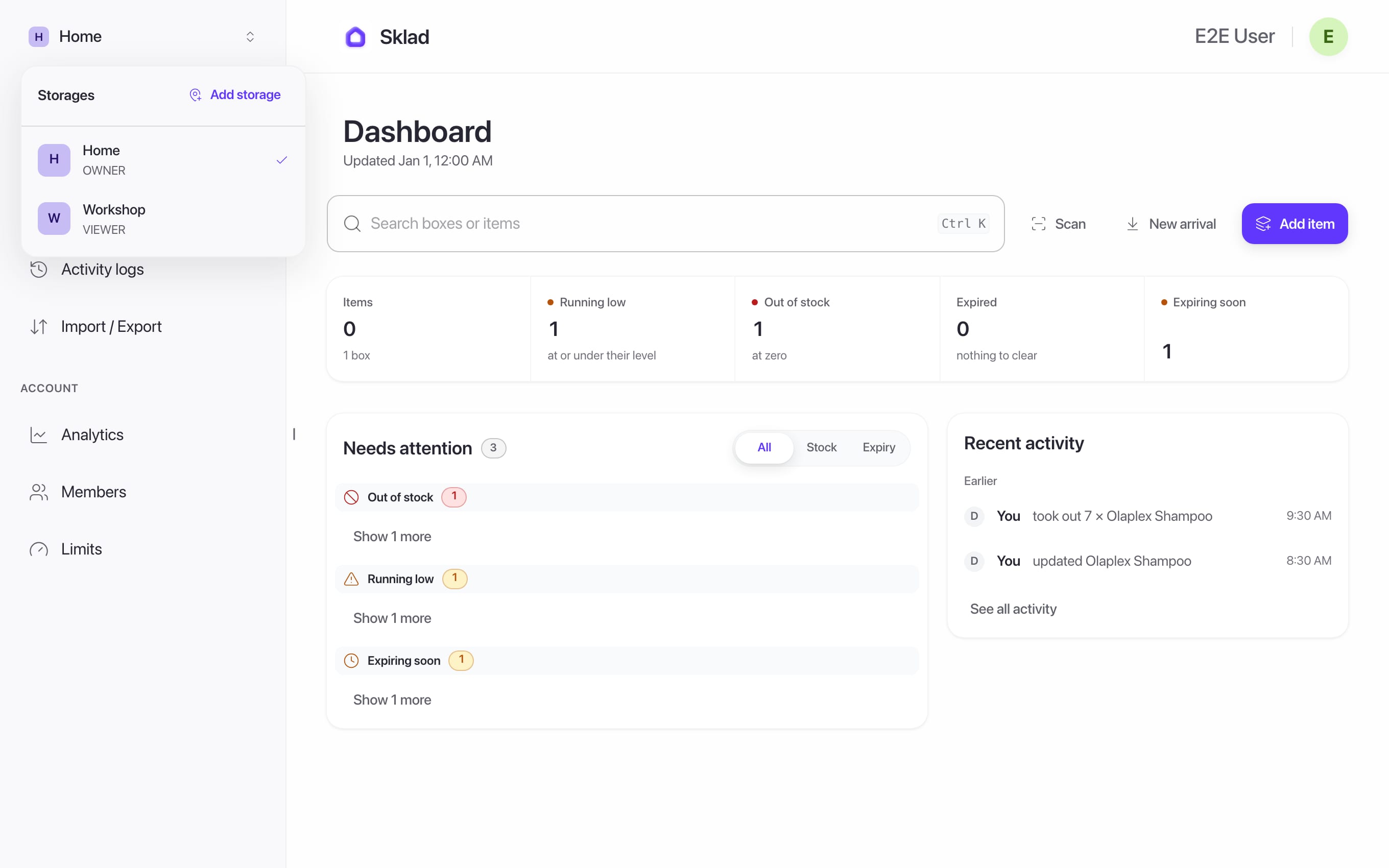
- Once you save, the storage is theirs to open. They refresh the page, and it appears as a new item in their storage list.
- They click the storage name at the top of the sidebar, which opens Storages, and pick the new storage there.
If it goes wrong
- "Members are on a higher plan": Free has no members, Starter one and Business sixteen.Can I share access with my family or team?
- Account members or storage roles?What is the difference between account members and storage roles?
I joined but see no storage: refresh the page. If it is still missing, ask the admin which storage they added you to.
- Anything elseContact us
Next
- Shared Inventory App — Permissions, Roles & Accountability
- How to check the activity history in SkladThe activity log shows who changed what, and when, in a storage.
- How to share your items with a storefront in SkladA storefront is a link that shows your items to anyone, with no account.
- How to choose and change your Sklad planSklad has three plans: Free, Starter and Business.