How to add items with photos and notes in Sklad
An item is one thing you keep track of: its name, how many you have, and where it is. You can add a price, a code, dates, notes and photos, and change the count as stock comes and goes.
Do this
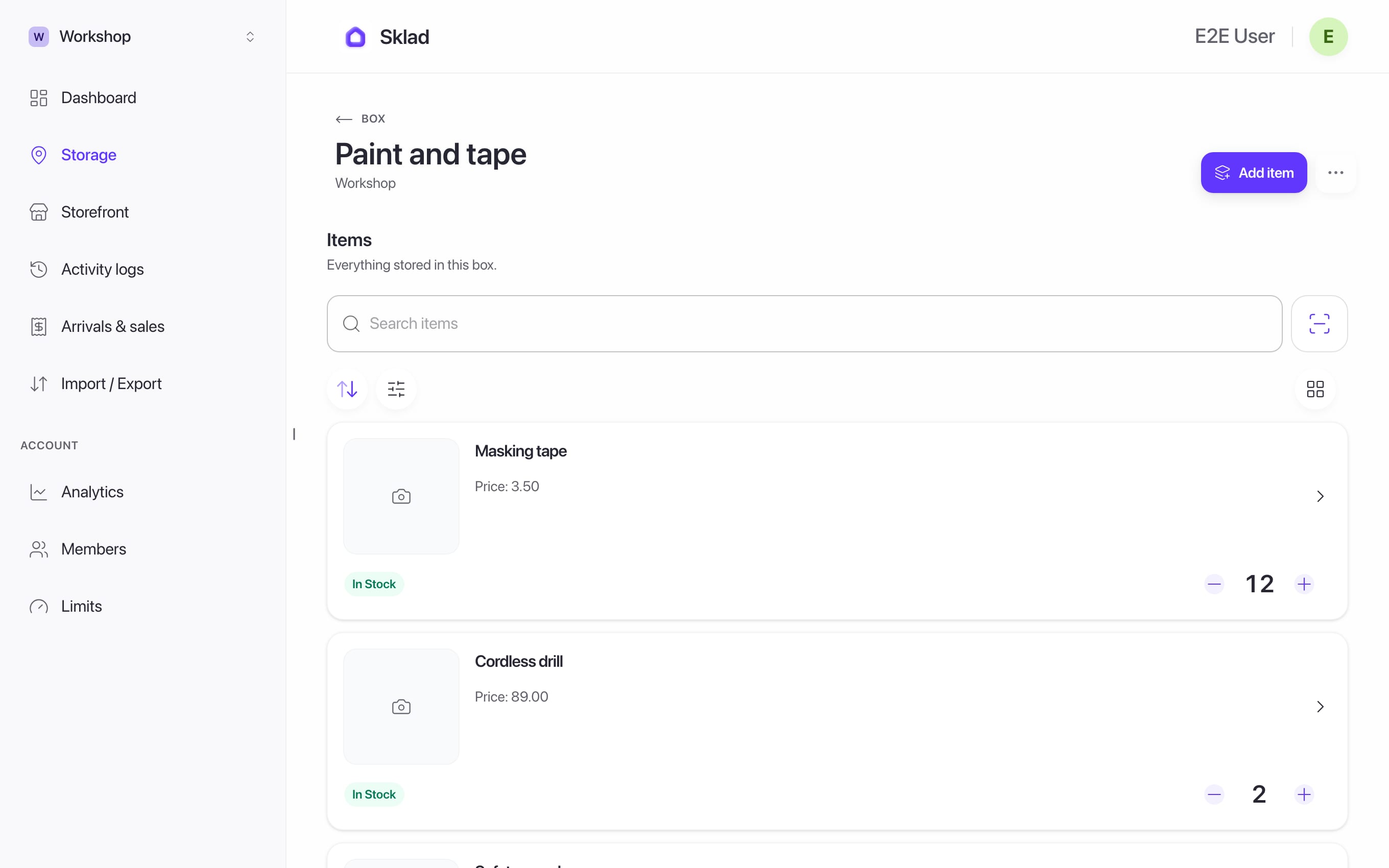
- Open a box and click Add item.
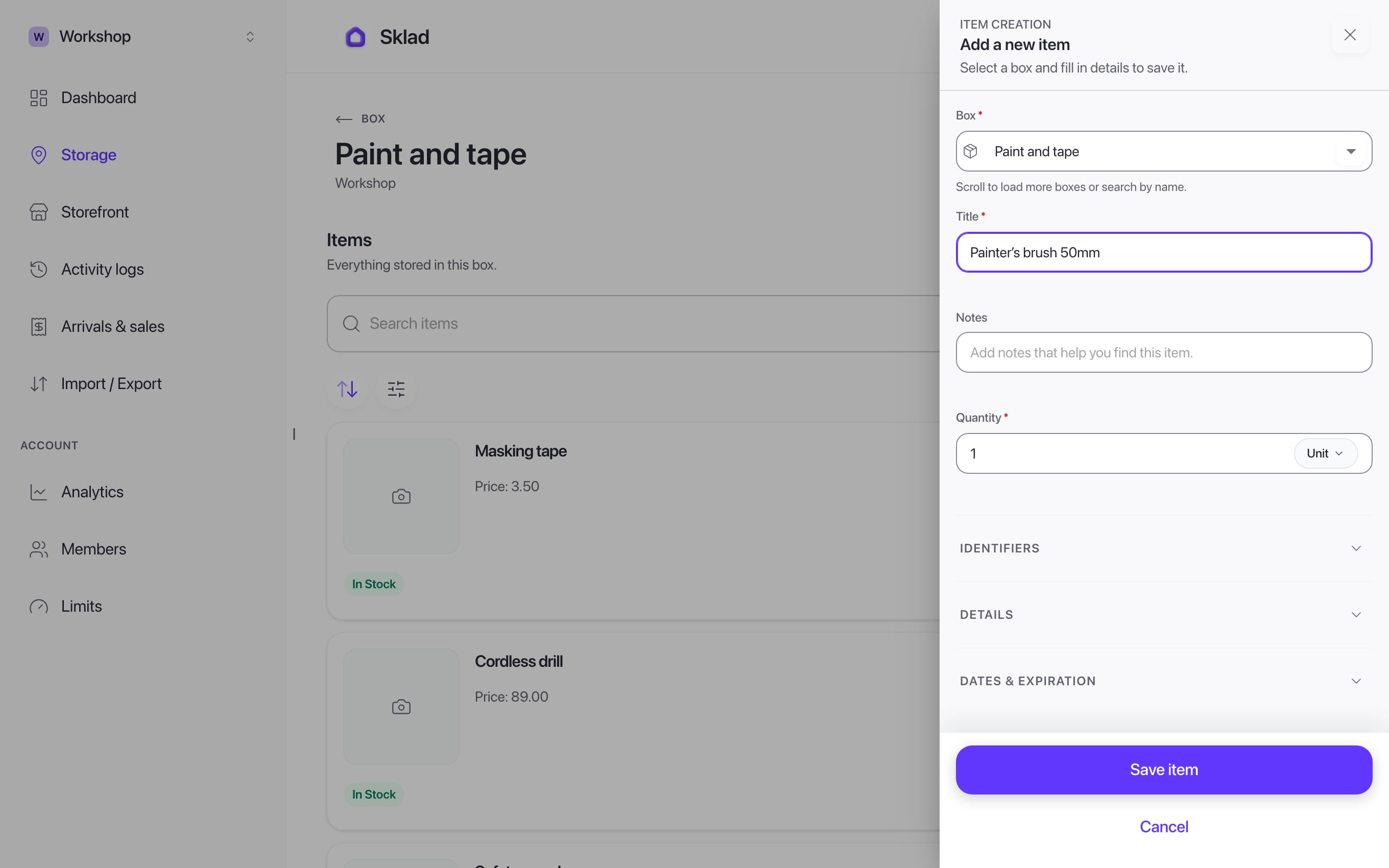
- Fill in the title and quantity. Everything else is optional: notes, price, SKU, a low stock alert quantity, dates. Click Save item.
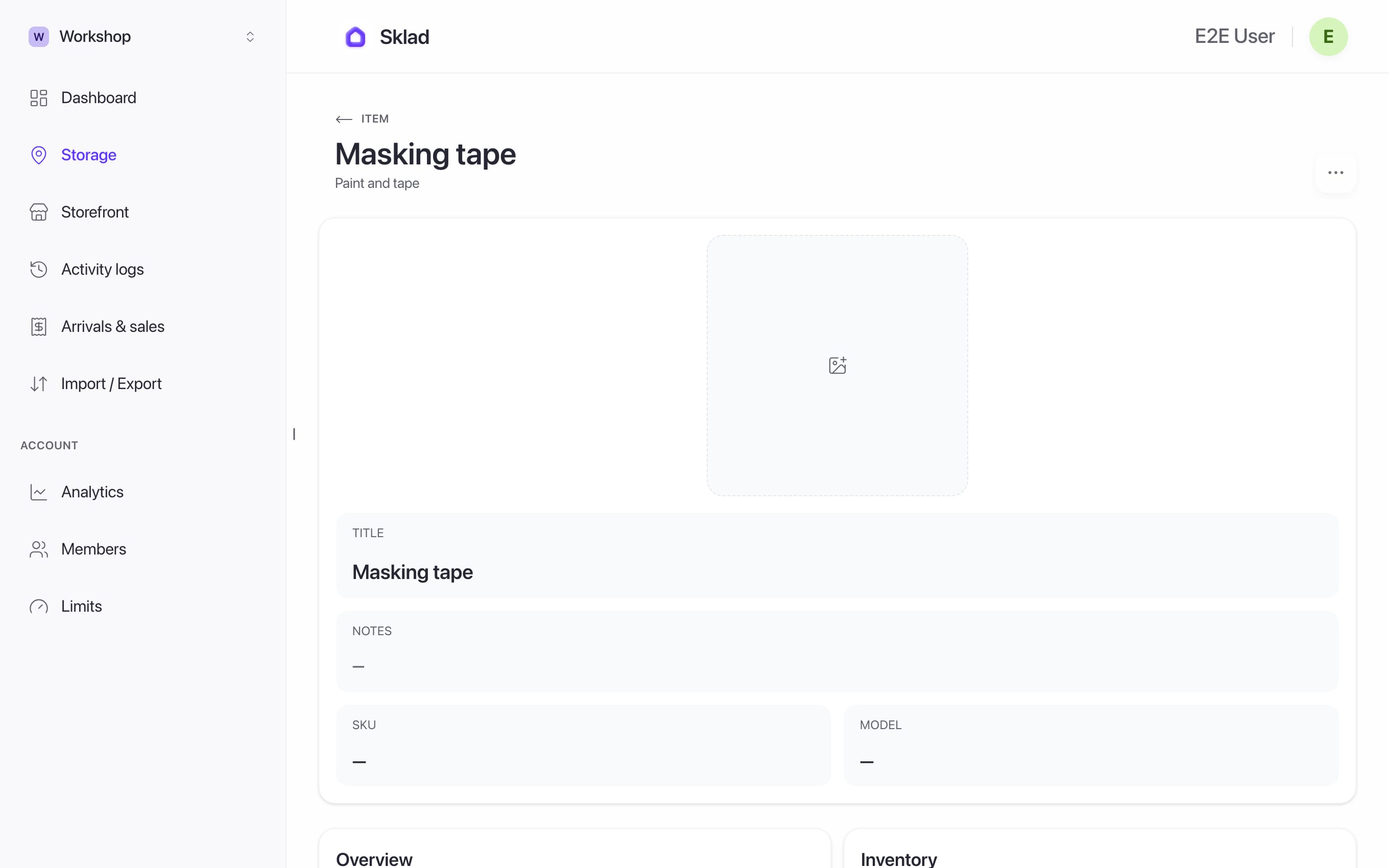
- To add a photo, click Add photo on the item. JPG, PNG or HEIC, up to 10 MB.
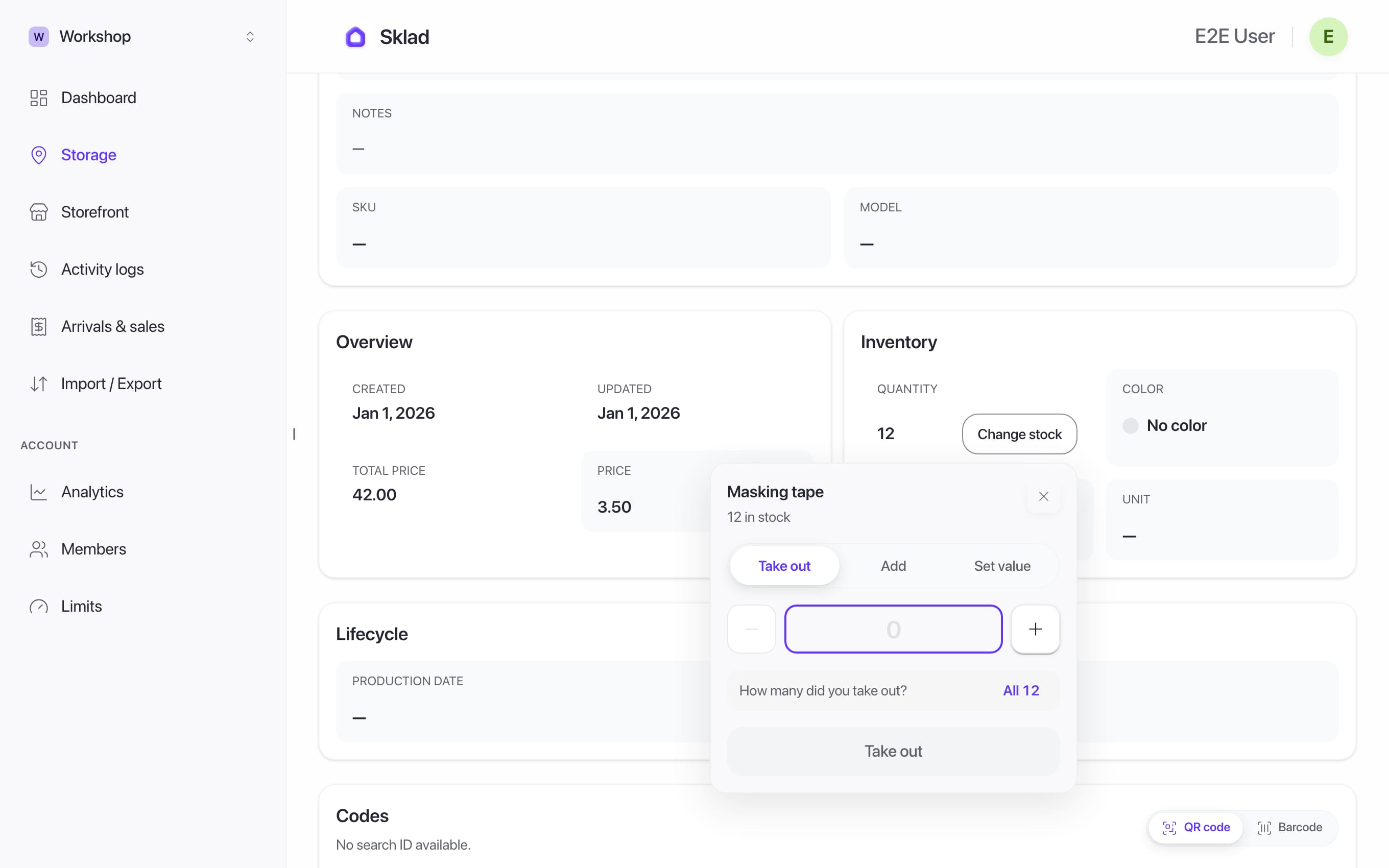
- When stock changes, click Change stock and choose Take out, Add or Set value.
Next
- Inventory App with Pictures — Visual Proof Built In
- How to set up low-stock alerts in SkladGive an item a level, and Sklad tells you when its count falls to it.
- How to scan barcodes and QR codes in SkladYour camera can find things for you.
- How to check the activity history in SkladThe activity log shows who changed what, and when, in a storage.